

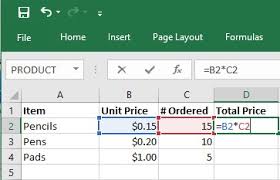
Get Help with Microsoft Excel

$30.0030 min

Are you having an issue with a formula in your Excel workbook and need some help?  Book a consultation with an expert today and solve the issue together.  During the consultation, you can share your computer screen with the consultant and edit your Excel workbook live during the call. 

If you are unfamiliar with Google Meet, see below for instructions on sharing your screen during a meeting on Google Meet.  


Desktop Instructions (Windows, Mac, ChromeOS)

  1. Click Present Now: At the bottom of the meeting window, click the "Present now" icon (a square with an upward-pointing arrow).

  2. Select Option:

    • Your entire screen: Shows everything on your monitor.

    • A window: Allows you to select a specific, open application window.

    • A tab: Best for video/animation, shares a specific Chrome browser tab and includes audio.

  3. Share: Select the specific screen/window and click "Share".

  4. Stop: Click "Stop presenting" at the top or in the menu bar.

    YouTube +8

Mobile Instructions (Android, iPhone, iPad)

  1. Join Meeting: Open the Google Meet app and join a meeting.

  2. Menu: Tap the three-dot icon in the bottom-right corner.

  3. Share: Select "Share screen" and confirm with "Start Sharing" or "Start Broadcast".

  4. Stop: Return to the app and tap "Stop sharing".

    Tactiq +2

Important Notes

  • Audio: To share audio, you must select "A tab" and check the "Share tab audio" box.

  • Permissions: You may need to grant screen recording permissions on your computer or phone.

Follow us on social media!

Privacy PolicyTerms and ConditionsRefund Policy

© Mind Your Bizzness, LLC. All rights reserved.